
guide
How to Merge PDFs Without Adobe Acrobat
Published · November 12, 2026
Adobe Acrobat is a fine product, but it is rarely what a merge job actually needs. The desktop subscription costs hundreds of dollars a year, the free trial nags you into signing up, and the installer alone is heavier than the documents you are trying to combine. For most everyday tasks — stitching scanned pages into one report, attaching receipts to an expense claim, bundling chapters into a handout — a subscription word processor of that size is simply overkill.
This guide walks you through merging any number of PDF files into a single, correctly ordered document using the free Merge PDF tool on this site. Everything happens inside your web browser: your files are read locally, combined with an open-source PDF library, and handed back as a download. Nothing is uploaded to a server, which is worth stating up front because it changes where and when you can safely do this — you can merge a signed contract on a work laptop with no IT approval, or combine medical records on public Wi-Fi, because the documents never leave your device.
What you need before you start
The checklist is short:
- A modern browser. Chrome, Edge, Firefox, Safari or any recent Chromium-based browser works. No extension, no plug-in, no account.
- Your PDF files. Gather them in a folder and, if the filenames are not already alphabetical in the order you want, rename them with a numeric prefix like
01-cover.pdf,02-chapter-1.pdf,03-appendix.pdf. Rename first, merge second — it makes the ordering step below trivial. - Roughly the time it takes to make coffee. A five-file merge is a thirty-second job once the files are in hand.
There is no upper limit imposed by an account tier, because there is no account. The practical ceiling is your device’s memory: hundreds of small-to-medium files merge comfortably on an ordinary laptop, and a handful of very large scanned documents works best on a machine with 8 GB of RAM or more.
Step 1: Open the Merge PDF tool
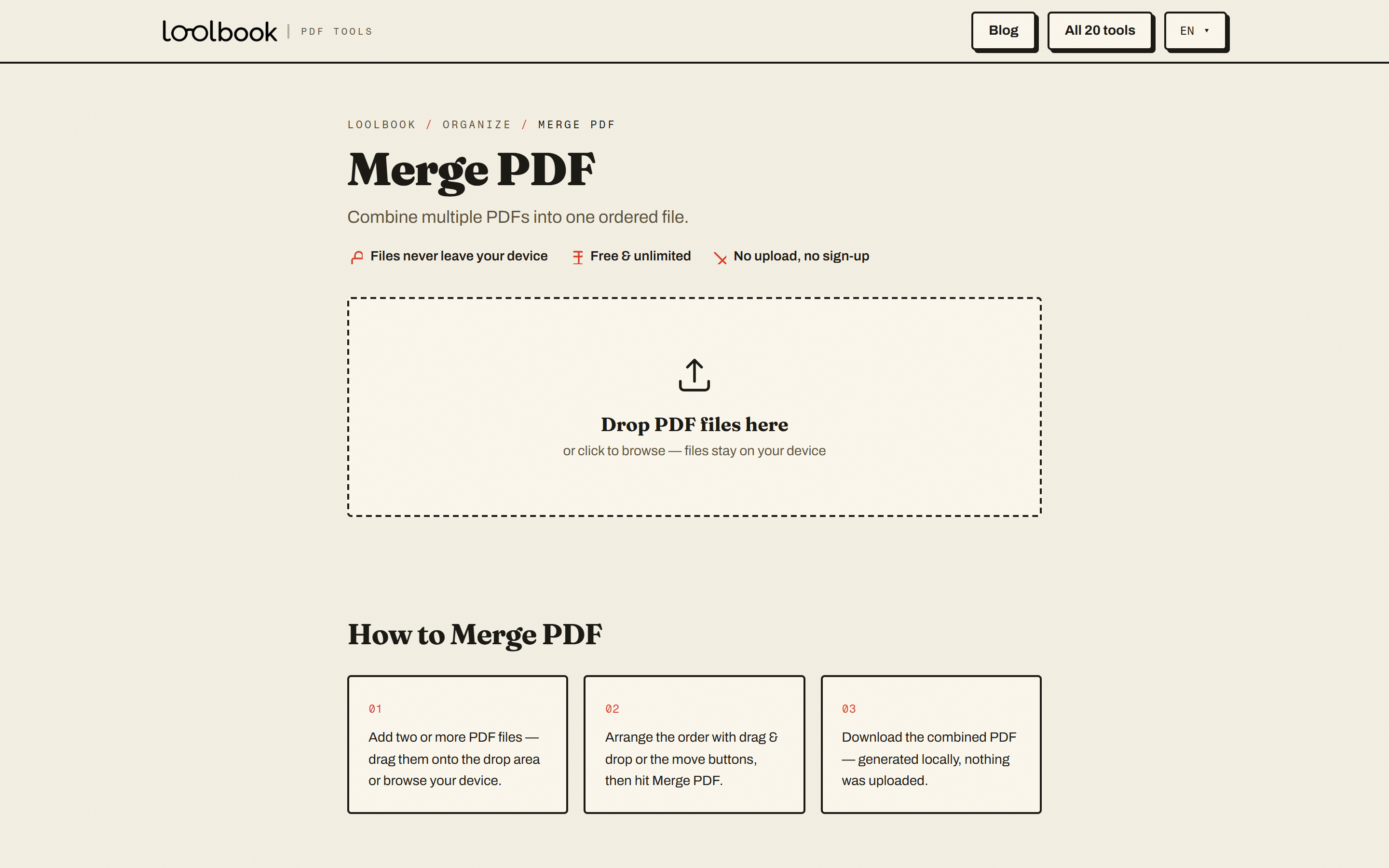
Open Merge PDF — it runs on phones and tablets as well, so you can merge two PDFs on an iPad as easily as on a desktop. You will see a large dropzone that accepts drag-and-drop and, for touch devices and narrower screens, a tap-to-pick file browser. Unlike web services that funnel every file through their own servers, this page begins working on your file the moment it is dropped; there is no upload progress bar because there is no upload.
Step 2: Add your PDFs in the right order
Drop your files anywhere on the dropzone — you can add several at once, or drop the first batch and use the + Add more files button that appears afterwards to append stragglers. Each file lands in a queue that shows its name, page count and size.
The queue is the merge order: the file at the top becomes the first pages of the output, the file below it follows, and so on. If you dropped the files in the wrong sequence, use the up and down arrows next to each row to move them, or remove a file with the × button and re-add it. This is where the numeric-prefix renaming from the preparation step pays off — files named 01-, 02-, 03- land in a queue that is already correct, and you can skip straight to merging.
Step 3: Name the output and tune the options
Once files are in the queue, the options panel opens. Two controls matter for most jobs:
- Output file name. The default is
merged.pdf; type something you will recognise in a month, likeq3-expenses.pdf. - Strip original metadata. Enabled by default, this removes each source file’s embedded author, producer and creation history, so the merged document carries a clean, neutral record. Leave it on unless you have a specific reason to keep the original metadata — and note that this is also a privacy courtesy: PDF metadata frequently reveals the machine names and usernames where files were created.
An advanced option lets the tool use your file-name list as the document title, which is handy when the names describe the content structure. One thing to know before you merge: bookmarks and outlines from the source files cannot be carried over, so the merged file receives a clean outline. Page content itself — text, images, forms, annotations — is preserved exactly.
Step 4: Merge and download
Press the red Merge PDF button. The work runs entirely on your device, so it takes seconds rather than the upload-then-queue-then-process minutes of server-based services. When it finishes, the result panel shows the page count and file size of your new document and offers a download. That single file is your complete document — pages in order, metadata clean, saved wherever you choose.
Tips for cleaner merges
- Order by content, not by filename alone. A numeric prefix keeps files sorted, but give the queue one last read before merging — swapping two chapters after the fact costs one extra merge, not a rewrite.
- Merge at the end of your workflow. If pages still need rotating, stamping or numbering, do that work with the Rotate PDF, Add Page Numbers or Watermark PDF tools before merging, so the final document needs only one pass.
- Name for searchability.
2026-11-12-contract-final.pdfbeatsDocument 17.pdfthe moment someone looks for the file later. - Keep the source files. Merging does not modify the originals — they remain on your disk untouched — but it is still wise to keep them until you have opened and checked the merged result.
Troubleshooting
The wrong pages came out in the wrong place. Almost always a queue-order issue: open the tool again, reorder the rows, and merge once more. The originals were never altered.
A password-protected file will not load. Encrypted PDFs must be unlocked before they can be read. Run the file through Unlock PDF first (you will need its password), then merge as normal.
The page counts in the queue look wrong. Page counts are read live from each file’s internal structure; if a download was interrupted and the PDF is truncated, the tool shows fewer pages than the file manager does. Re-download the source file and re-add it.
The merged file is larger than the sources added together. That is normal — concatenation copies each page’s resources as they are. If size matters, run the result through Compress PDF afterwards.
FAQ
Do I need to create an account or pay? No. There is no account, no email field, no trial expiry and no watermark on the output.
Are my documents uploaded anywhere? No. The merge runs inside your browser using an open-source library; the files never leave your device. Close the tab and every trace is gone.
Can I merge a Word document or image into the PDF set? Convert it first — Word to PDF and JPG to PDF produce PDFs that merge cleanly with the rest.
Can I reverse a merge? Yes — Split PDF cuts any PDF back into ranges or single pages, so a merge is never a one-way door.
Merging PDFs should be as unremarkable as stapling paper — the right tool makes it so. Open Merge PDF, drop your files, and you are done before the coffee cools.
try it now